# MCPHub: Managing MCP Servers Across Multiple AI Tools
If you're working with multiple AI coding tools, you know the pain. Claude Code stores its MCP config in `~/.claude/.mcp.json`. Claude Desktop uses `~/Library/Application Support/Claude/claude_desktop_config.json`. Roo Code buries it in VS Code's global storage. Windsurf and Cursor have their own locations. Same servers, five different config files, no synchronization.
I got tired of manually editing JSON files and built MCPHub to fix it.
## What MCPHub Does
MCPHub is a native macOS app that gives you a single interface for managing MCP server configurations across five AI development tools: Claude Code, Claude Desktop, Roo Code, Windsurf, and Cursor. It reads all config files, presents a unified view, and lets you enable or disable servers per tool with toggle switches.
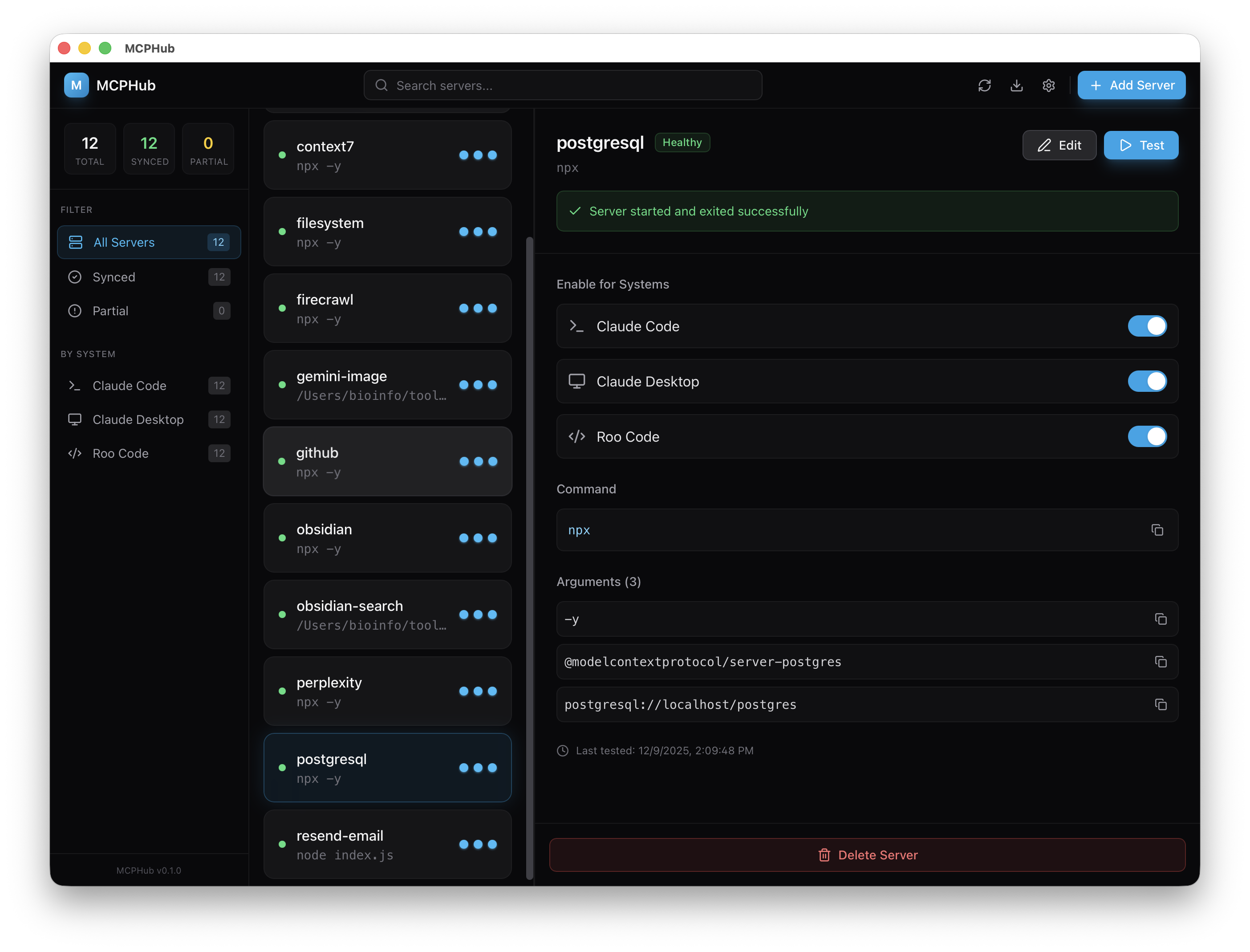
The left panel shows every MCP server across your configs. Status indicators show which tools have each server enabled: green dots for healthy servers, yellow for untested, red for errors, gray for disabled.
Click a server to edit its configuration: command path, arguments, environment variables, and permissions. Toggle switches let you control which tools use that server independently.
**Key features:**
- View and manage all MCP servers from one interface
- Enable/disable servers individually per tool
- Test server connections before using them
- Sync configurations across tools
- Automatic backups before changes
- Path expansion (converts `~` to full paths automatically)
## Supported Tools
| Tool | Config Location |
|------|-----------------|
| Claude Code | `~/.claude/.mcp.json` |
| Claude Desktop | `~/Library/Application Support/Claude/claude_desktop_config.json` |
| Roo Code | `~/Library/Application Support/Code/User/globalStorage/rooveterinaryinc.roo-cline/settings/mcp_settings.json` |
| Windsurf | `~/.windsurf/mcp_settings.json` |
| Cursor | `~/.cursor/mcp_settings.json` |
## The Problem with MCP Configuration
The Model Context Protocol gives AI assistants structured access to external tools and data. It's powerful. The configuration management is not.
Each AI tool stores its MCP config separately. If you add a new server to Claude Code, you need to manually copy that config to Claude Desktop, Roo Code, Windsurf, and Cursor if you want it available everywhere. If you're testing a server and it crashes one tool, you have to remember to disable it in the other four.
JSON editing is error-prone. One wrong quote, one missing comma, and your entire config is broken. No validation until you restart the tool and discover nothing works.
> [!warning] Config File Conflicts
> Editing these files while the tools are running can cause conflicts. MCPHub handles this by backing up before changes and providing clear error messages when file locks prevent writes.
## Architecture
MCPHub uses Tauri 2.x, which means a Rust backend for file operations and a React frontend for the UI. This gives us native performance, small binary size (~8MB), and no Electron overhead.
**Tech stack:**
- Tauri 2.x (Rust + web frontend)
- React 19 with TypeScript
- Tailwind CSS for styling
- Zustand for state management
- Lucide React for icons
The Rust backend exposes commands via Tauri's IPC system:
```rust
#[tauri::command]
async fn get_managed_servers() -> Result<Vec<ManagedServer>, String> {
// Read all three config files
// Merge servers by ID
// Return unified list with per-tool status
}
#[tauri::command]
async fn set_server_enabled(
server_id: String,
tool: String,
enabled: bool
) -> Result<(), String> {
// Update specific tool's config
// Create backup first
// Write atomically
}
```
The frontend calls these commands through type-safe wrappers:
```typescript
import { invoke } from '@tauri-apps/api/core';
export async function getManagedServers(): Promise<ManagedServer[]> {
return await invoke('get_managed_servers');
}
export async function setServerEnabled(
serverId: string,
tool: Tool,
enabled: boolean
): Promise<void> {
return await invoke('set_server_enabled', {
serverId,
tool,
enabled,
});
}
```
State management uses Zustand for simplicity. The entire app state fits in one store:
```typescript
interface AppState {
servers: ManagedServer[];
selectedServer: ManagedServer | null;
loading: boolean;
error: string | null;
// Actions
loadServers: () => Promise<void>;
selectServer: (server: ManagedServer) => void;
toggleServer: (serverId: string, tool: Tool) => Promise<void>;
testConnection: (serverId: string) => Promise<TestResult>;
}
```
## Server Testing
The "Test Connection" button verifies servers before you enable them. MCPHub checks:
1. Command path resolution (can we find the executable?)
2. File path existence (do referenced files exist?)
3. Server startup (can it actually start without errors?)
For stdio-based servers (most MCP servers use stdio transport), this means spawning the process, checking for initialization messages, then cleanly shutting it down.
```rust
pub async fn test_server_connection(
command: &str,
args: &[String],
env: &HashMap<String, String>,
) -> Result<TestResult, String> {
// Resolve command path
let cmd_path = resolve_command_path(command)?;
// Verify file paths in args and env
verify_paths(args, env)?;
// Start server process
let mut child = Command::new(&cmd_path)
.args(args)
.envs(env)
.stdin(Stdio::piped())
.stdout(Stdio::piped())
.stderr(Stdio::piped())
.spawn()
.map_err(|e| format!("Failed to start server: {}", e))?;
// Wait for initialization or timeout after 5s
match timeout(Duration::from_secs(5), wait_for_init(&mut child)).await {
Ok(Ok(_)) => {
child.kill().await.ok();
Ok(TestResult::Success)
}
Ok(Err(e)) => Ok(TestResult::Error(e)),
Err(_) => Ok(TestResult::Error("Server startup timeout".into())),
}
}
```
Failed tests show specific error messages. "Command not found" tells you the executable isn't in PATH. "Permission denied" means file permissions need fixing. "Server crashed with exit code 1" gives you a starting point for debugging.
## Syncing Configurations
The "Sync All" button copies one tool's config to all others. Useful when you've spent time configuring servers in Claude Code and want the same setup across all five tools.
MCPHub preserves tool-specific settings during sync. Environment variables that point to tool-specific paths (like workspace directories) aren't blindly copied. The sync process intelligently merges configs, keeping what makes sense per tool.
```typescript
async function syncAllServers(sourceTool: Tool): Promise<void> {
// Get servers from source tool
const sourceServers = await getServersForTool(sourceTool);
// For each target tool
const allTools = ['claude-code', 'claude-desktop', 'roo-code', 'windsurf', 'cursor'];
for (const targetTool of allTools) {
if (targetTool === sourceTool) continue;
// Copy servers, adjusting tool-specific paths
for (const server of sourceServers) {
await saveServerToTool(server, targetTool, {
adjustPaths: true,
preserveExisting: false,
});
}
}
}
```
## Backups and Safety
MCPHub creates timestamped backups before any config changes:
```
~/.mcphub/backups/
├── cc_20260114_143022.json # Claude Code backup
├── cd_20260114_143022.json # Claude Desktop backup
└── rc_20260114_143022.json # Roo Code backup
```
If an edit breaks something, you can restore from backup manually. The backup system saved me multiple times during development when I was testing aggressive config changes.
App state (health status, test results) persists in `~/.mcphub/state.json`. This means server health indicators survive app restarts.
## Security and Privacy
MCPHub works entirely offline. No network requests, no telemetry, no data collection. It reads and writes only to known config paths:
- `~/.claude/.mcp.json` (Claude Code)
- `~/Library/Application Support/Claude/claude_desktop_config.json` (Claude Desktop)
- `~/Library/Application Support/Code/User/globalStorage/rooveterinaryinc.roo-cline/settings/mcp_settings.json` (Roo Code)
- `~/.windsurf/mcp_settings.json` (Windsurf)
- `~/.cursor/mcp_settings.json` (Cursor)
The source code is open on GitHub. You can audit exactly what it does before running it.
## Installation
Download the latest `.dmg` from the [releases page](https://github.com/BioInfo/mcphub/releases) or build from source:
```bash
git clone https://github.com/BioInfo/mcphub.git
cd mcphub
npm install
npm run tauri dev # Development mode
# Or build production app
npm run tauri build # Output in src-tauri/target/release/bundle/
```
**Requirements:**
- macOS 12.0+ (Monterey or later)
- For building: Rust 1.70+, Node.js 18+, Xcode Command Line Tools
## Why This Matters
MCP is going to be how AI assistants access external tools and data. As the protocol matures and more servers become available, config management gets more complex. MCPHub makes that manageable.
The pattern of "multiple tools, shared configuration" appears everywhere in developer workflows. This approach (native app, unified view, per-tool toggles) could work for other protocol implementations beyond MCP.
I built this in 15 minutes with Claude Code because I needed it. If you're juggling multiple AI coding tools with MCP configs, you might need it too.
**Project page:** [justinhjohnson.com/project/mcphub](https://www.justinhjohnson.com/project/mcphub)
---
### Related Articles
- [[Knowledge/Blog-Obsidian/Practical Applications/claude-skills-vs-mcp-servers|Claude Skills vs MCP Servers: Why Context Efficiency Matters]]
- [[model-context-protocol-implementation|Building with the Model Context Protocol]]
- [[agent-architectures-with-mcp|Agent Architectures with MCP]]
---
<p style="text-align: center;"><strong>About the Author</strong>: Justin Johnson builds AI systems and writes about practical AI development.</p>
<p style="text-align: center;"><a href="https://justinhjohnson.com">justinhjohnson.com</a> | <a href="https://twitter.com/bioinfo">Twitter</a> | <a href="https://www.linkedin.com/in/justinhaywardjohnson/">LinkedIn</a> | <a href="https://rundatarun.io">Run Data Run</a> | <a href="https://subscribe.rundatarun.io">Subscribe</a></p>